Improved ‘Show’ options in Sequence Work Page
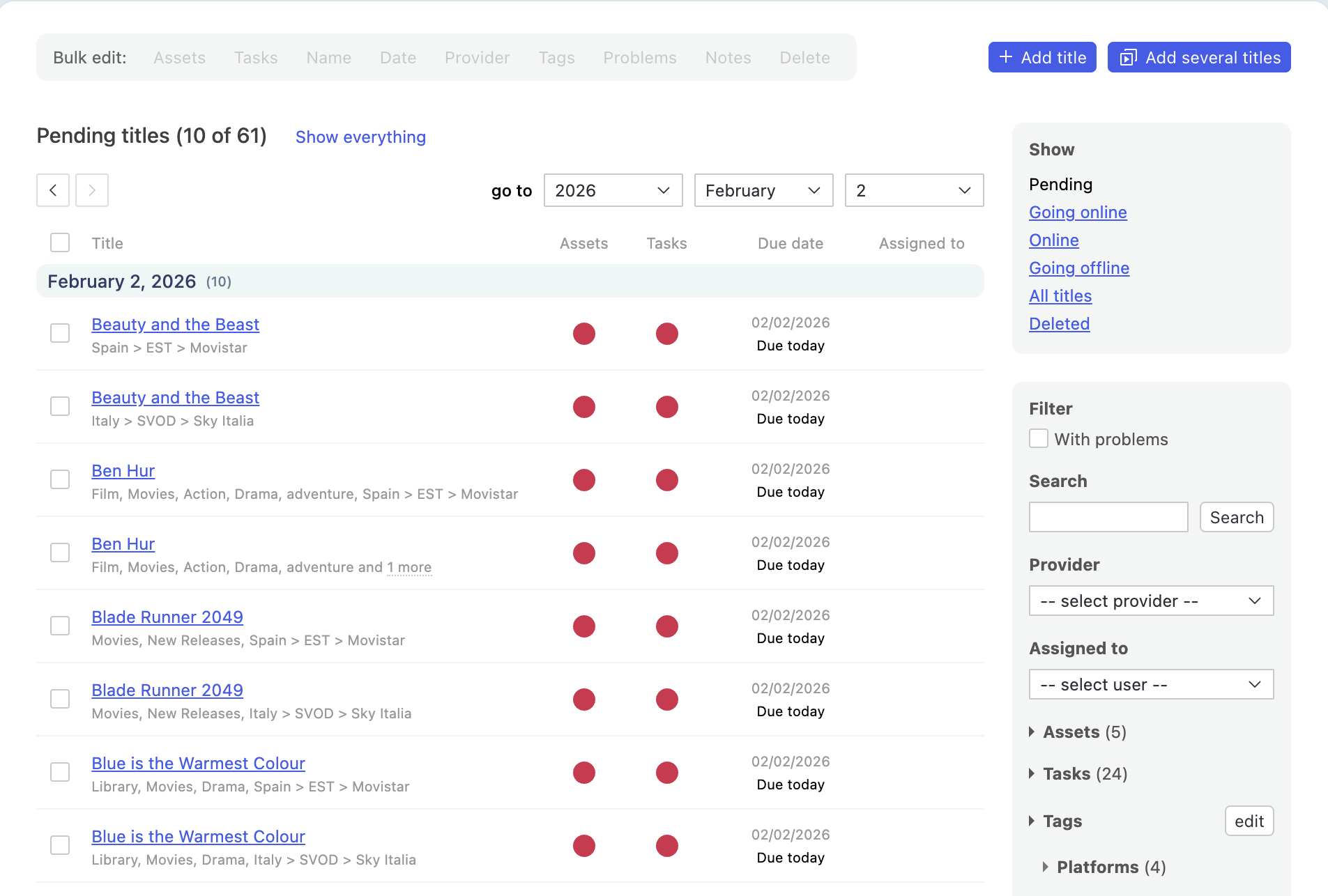
April 17th, 2026 (Revision 1), print this pageWe’ve improved how the Sequence Work page handles the ‘Show’ options to make it more consistent and reliable. Clicking on ‘Show’ used to trigger a simple navigation shortcut. It now acts like a true filter.
What’s changed
Views like Pending, Going online, and Going offline now act as true filters. Once you click on one, the system will take you to a filtered view showing all relevant Sequence jobs. No more unrelated results when scrolling.
Here’s what each of the ‘Show’ options will do:
- Pending: Displays all Sequence jobs that are not completed or have materials not yet received, helping you focus on outstanding work.
- Going online: Shows completed Sequence jobs that are currently within their availability window (Begins at ≤ now ≤ Ends at), meaning they are about to go live or in the process of going live.
- Online: Displays completed Sequence jobs that are currently live, based on their schedule (Begins at ≤ now ≤ Ends at).
- Going offline: Shows Sequence jobs that are approaching their end date, where the end date is now or in the future (Ends at ≥ now).
- All titles: Displays all Sequence jobs, regardless of status or scheduling.
- Deleted: Displays Sequence jobs that have been deleted.
How ‘Show’ options interact with other filters
The ‘Show’ options behave as primary filters. If you apply filters first and then select a ‘Show’ option, your existing filters will be cleared and replaced by the selected view. If you select a ‘Show’ option first and then apply additional filters, they will be combined as AND conditions, further narrowing down the results.
If you would like to learn more, don’t hesitate to reach out to your Customer Success Manager!