We’ve added support for markers and AI-assisted image alt text in Mediagenix On-Demand, helping teams carry media information through publication workflows and write image descriptions with less manual effort.
Work with markers
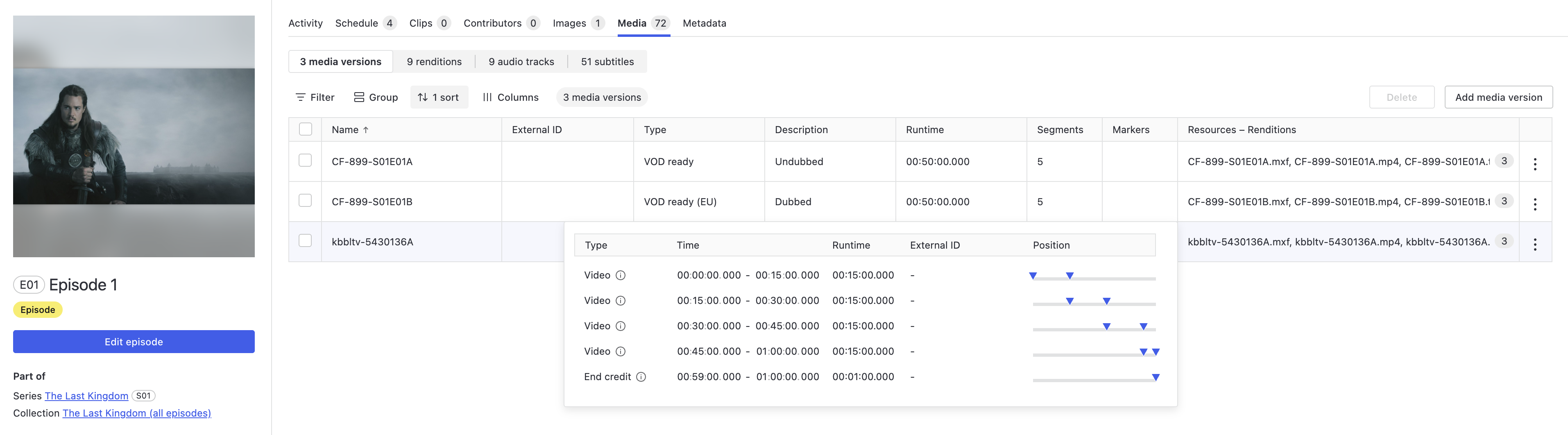
Markers record precise points of interest within a media version. They’re commonly used for ad insertion points, chapters, or to indicate when playback controls, such as a “Next episode” button, should appear. Most markers refer to a single timecode, though they can also include an end timecode and duration.
Your integrations can now bring marker information into Mediagenix On-Demand, where teams can review it in the interface. Marker data can also be made available to downstream publication workflows, supporting ad insertion and platform-specific packaging while reducing manual corrections and workarounds.
Add marker information through integrations
You can use an integration, often connected to your MAM system, to create and manage markers against media versions. Each marker has a start timecode and a type. You can also provide:
- A marker External ID.
- An end timecode, which is used to calculate the duration.
- Configurable marker metadata.
For technical details, see the Marker API documentation.
Marker types and metadata fields can be configured in Settings. Contact your Customer Success Manager for help setting them up for your workflows.
Generate image alt text with AI
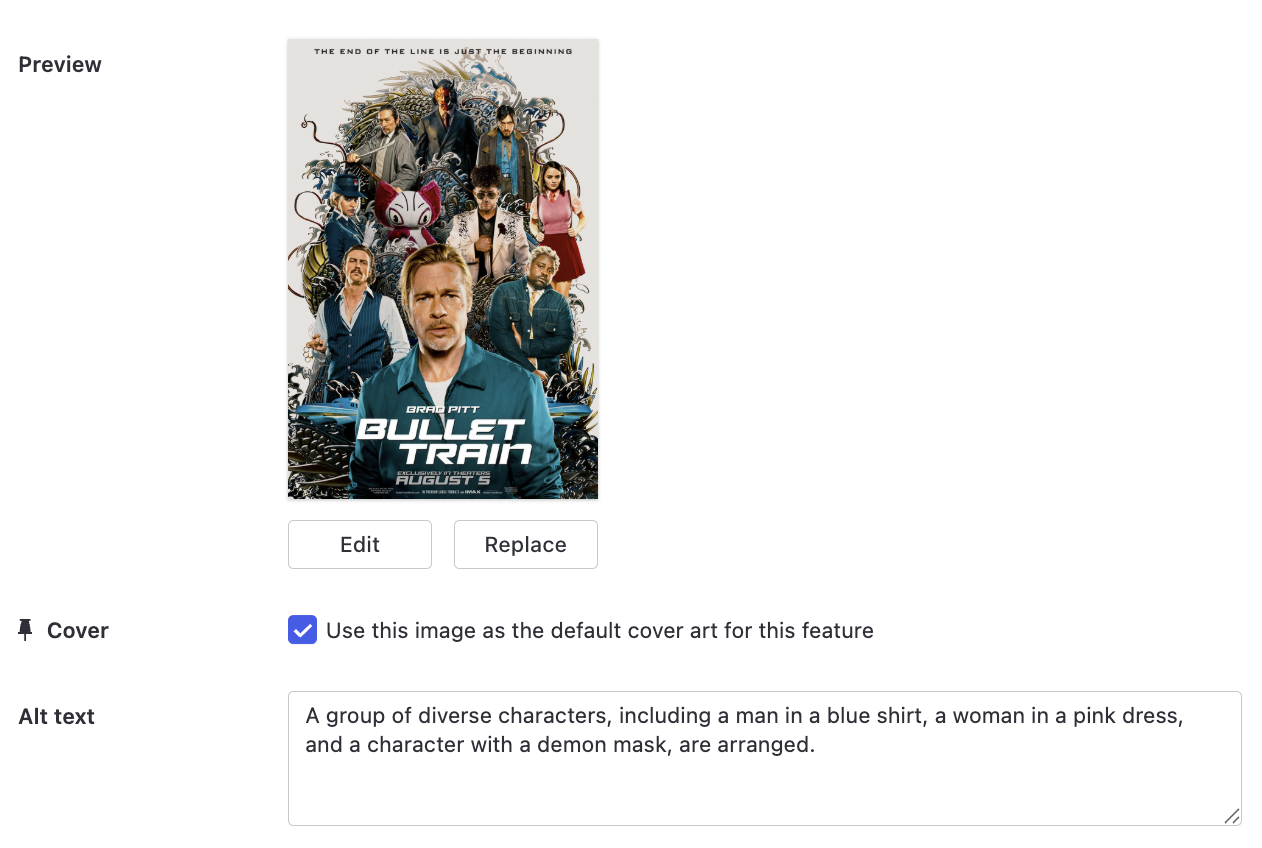
Mediagenix On-Demand already supports adding and managing alt text for images. You can now use AI to generate a suggested description for a catalogue image, then review and edit it before saving.
When the feature is enabled, a Generate button appears in an empty Alt Text field.

- Select Generate to fill the field with an AI-suggested description.
- Review, edit or replace the suggestion.
- Save the form to save the final text.
This gives you a starting point while keeping you in control of the final description.
Enable AI-assisted generation
Your Customer Success team can enable AI-assisted alt text generation for your company.
AI generation is optional per company and disabled by default. It can be enabled through Settings > Features. Image editing continues to follow your existing User Roles permissions.